
Network AI Connector
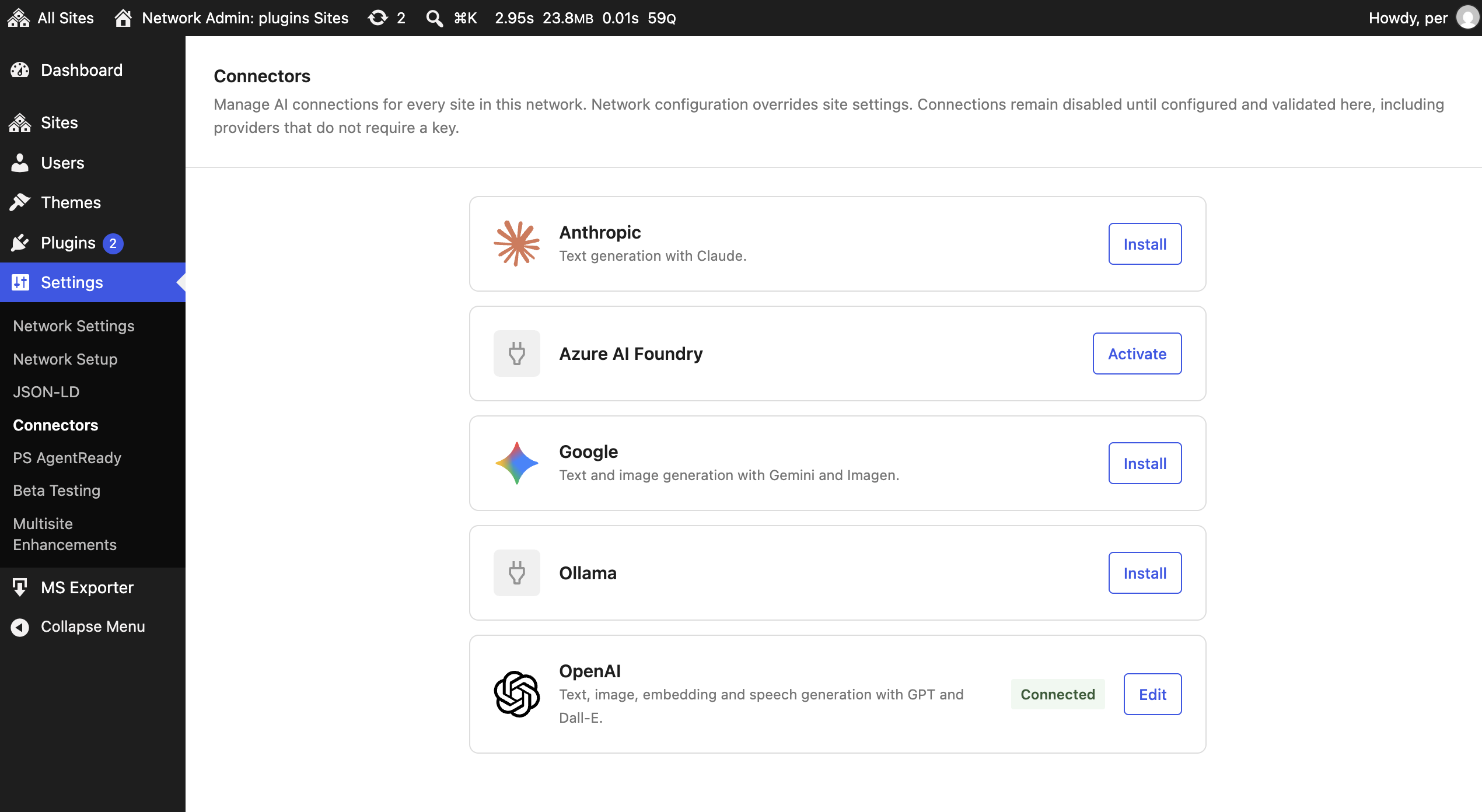
Manage supported AI connections once for your WordPress multisite network. Network administrators configure connections in Network Admin → Settings → Connectors; sites use the network connection instead of keeping separate provider credentials.
Download the latest plugin ZIP.
Important: Network activation changes how managed providers get their credentials right away. A provider with no working network connection may stop working, even if a site already has a key. Existing site settings are kept, but are not used while network management is active. Set up your connections promptly after activation.
What you need
Section titled “What you need”- WordPress multisite running WordPress 7.1 or later and PHP 8.2 or later.
- A network administrator account.
- The provider plugins and credentials you plan to use.
- A WordPress server that can reach your AI provider.
Checking a connection contacts the provider. Depending on the provider, validation may use billable API requests.
Install and connect a provider
Section titled “Install and connect a provider”- In Network Admin → Plugins, install Network AI Connector from the ZIP above, then choose Network Activate.
- Open Network Admin → Settings → Connectors.
- Find the provider you want. Choose Install or Activate if shown; either action makes that provider available network-wide.
- Choose Set up, enter the requested key and connection details, then select Save.
- After validation succeeds, the provider is ready to use across the network.
If a connection cannot be validated, it is not saved. When replacing an existing connection, a failed check leaves the previous connection in place.
Provider setup
Section titled “Provider setup”Most API-key providers: Install and network-activate the provider plugin, then enter its key on the Connectors page.
Azure AI Foundry: Install AI Provider for Azure AI Foundry. Enter the endpoint, deployment names, capabilities, and API key.
Ollama: Install and network-activate AI Provider for Ollama by Fueled. Like the site Connectors page, it works right away with the default host (http://localhost:11434) and no key. To use another host or an API key, choose Edit, enter the details, and save; the connection is validated first. http://localhost:11434 refers to the WordPress server—not your own computer. Ollama must be running and reachable from that server.
Other compatible API-key providers are discovered through the WordPress Connectors and AI Client registries. A provider that needs extra settings may require a Network AI Connector integration. Providers marked not network-managed do not expose compatible request authentication, so this plugin cannot control their connections.
For site administrators
Section titled “For site administrators”Managed AI connections are controlled by your network administrator. Their settings are removed from the site-level Connectors page, which explains where connections are managed. If no other connectors are available, the misleading No connectors yet prompt is hidden. Other, non-managed connectors continue to work as before.
Change or remove a connection
Section titled “Change or remove a connection”- To change a connection, open it with Edit and save the updated details.
- Saved keys are never displayed. Enter a new key to replace the current one; leaving the key field blank keeps the saved key.
- To remove a connection, choose Confirm removal, then Remove network connection. The managed provider stops working until it is configured again; it will not fall back to a site’s key.
- To stop using an Ollama key, select Remove saved key and connect without one, then Save. Reset to default removes all saved Ollama settings and returns to the default host without a key.
Troubleshooting
Section titled “Troubleshooting”A provider says Install or Activate. Its plugin is missing or is not network-active. Use the offered action. If you see Learn more, you may not have permission to manage plugins, or your host may prevent plugin installation.
A provider is Not available. Its plugin may be missing, inactive, or not registering its AI provider. Check that the provider plugin is compatible and network-activated.
A site cannot configure an AI provider. This is expected: managed provider settings are available to network administrators only.
Saving or validation fails. Check the key, required fields, endpoint or host URL, and whether the WordPress server can reach the provider. URLs must use HTTP or HTTPS and must not include credentials or fragments. The previous saved connection is kept if validation fails.
Credentials and network behavior
Section titled “Credentials and network behavior”Keys are stored in WordPress network options. This plugin does not add application-level encryption, so protect network administrator accounts, database access, and backups, and use HTTPS where possible. Saved keys are not displayed in the settings form.
Each network has its own connections. Deactivating Network AI Connector restores the usual site or hosting-provided configuration on subsequent requests but keeps the network settings. Uninstalling the plugin deletes its keys and settings from all networks; existing site settings are left intact.
For developers
Section titled “For developers”The network_ai_connector_provider_settings filter lets a provider add network-managed fields and runtime configuration. This is a Network AI Connector integration contract, not part of the upstream provider standard. See the design notes and glossary.
To run checks, use PHP syntax checks and PHPCS. The integration suite makes temporary database and filesystem changes, so run it only against a disposable multisite. The site-notice browser tests require Node.js 18+ and Chromium:
phpcs --standard=WordPress-Extra --extensions=php --ignore=tests .node --test tests/site-notice.test.jsLicense and credits
Section titled “License and credits”GPL-2.0-or-later. The bundled provider and fallback icons are derived from the WordPress 7.1 core Connectors page (Copyright 2011-2026 WordPress contributors; GPL-2.0-or-later). A connector’s registered logo takes precedence over the bundled icon.
📦 Source: soderlind/network-ai-connector · Edit on GitHub