
AI Valve
Control, meter, and permission-gate AI usage from plugins that connect through the WordPress 7 AI connector.
Inspired by WordPress AI Connectors Need More Friction, Not Less. Works with WordPress 7 RC2. Tested with WordPress AI, Virtual Media Folders AI Organizer, and AI Provider for Azure AI Foundry.
Features
Section titled “Features”- Per-plugin access control — Allow or deny individual plugins from making AI requests.
- Abilities API guard (optional, WordPress 7.1+) — Apply the same policy to WordPress Abilities API calls, keyed by ability namespace.
- Token budgets — Set daily and monthly token limits per plugin and globally.
- Context restrictions — Control which execution contexts (admin, frontend, cron, REST, AJAX, CLI) may trigger AI calls.
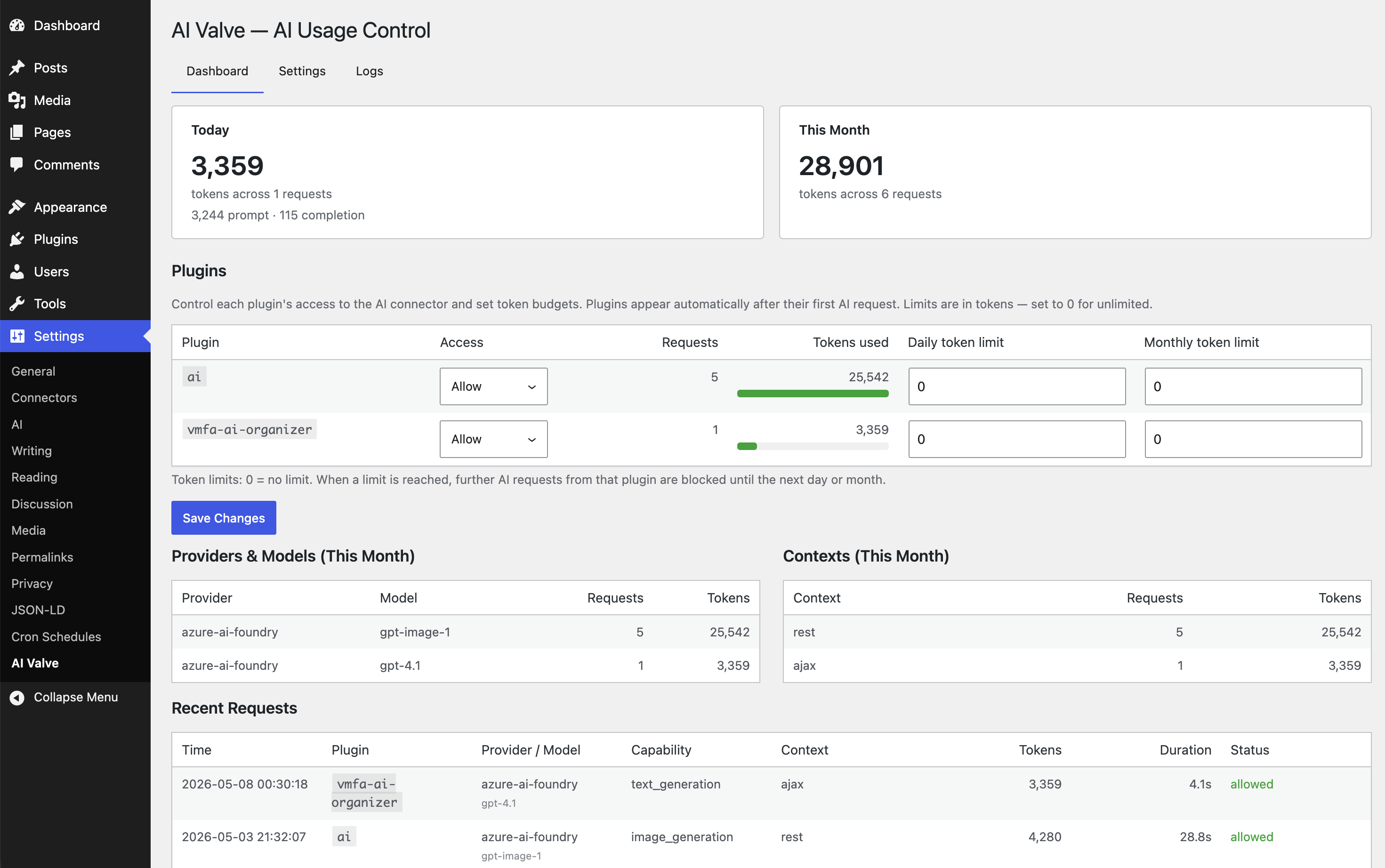
- Usage dashboard — Token consumption at a glance: summary cards, progress bars, and per-plugin breakdowns.
- Request logging — Every AI request is logged with provider, model, capability, tokens, and caller attribution.
- Budget alerts — Admin notices and optional email when usage approaches or exceeds limits.
- Developer hooks — Filter and action hooks to extend behaviour without modifying the plugin.
Requirements
Section titled “Requirements”- WordPress 7.0+
- PHP 8.3+
- A configured AI provider in Settings → Connectors
Installation
Section titled “Installation”- Go to Plugins > Add New
- Search for “AI Valve”
- Click Install Now and Activate
From GitHub
Section titled “From GitHub”- Download
soderlind-aivalve.zip - Upload via
Plugins → Add New → Upload Plugin - Activate via
WordPress Admin → Plugins - Configure settings via
Settings → AI Valve
From source
Section titled “From source”git clone https://github.com/soderlind/ai-valve.gitcd soderlind-aivalvecomposer installnpm install && npm run buildAfter activation, AI Valve intercepts all calls made through wp_ai_client_prompt(). Navigate to Settings → AI Valve:
- Dashboard — Token usage for today and this month, per-plugin access/budget controls, provider breakdown, and recent requests.
- Settings — Master switch, default policy, context restrictions, global budgets, and alert configuration.
- Logs — Filterable, paginated request log with purge controls.
How It Works
Section titled “How It Works”AI Valve hooks into three WordPress 7 AI connector events:
| Hook | Purpose |
|---|---|
wp_ai_client_prevent_prompt | Gate requests — evaluate policy |
wp_ai_client_before_generate_result | Insert a pending log row with caller attribution |
wp_ai_client_after_generate_result | Update the pending row with token usage and status |
A pending log row is created before the AI provider is called. If the provider throws (auth error, timeout, bad deployment), a shutdown handler marks the row as error so failed requests are never lost.
Caller attribution uses debug_backtrace() to identify which plugin initiated the request.
When a request is blocked the calling plugin receives a WP_Error with code prompt_prevented. See docs/how-blocking-works.md for the full explanation.
Abilities API (WordPress 7.1+)
Section titled “Abilities API (WordPress 7.1+)”Optionally, enable Guard Abilities API in Settings to apply the same policy to the WordPress Abilities API. AI Valve hooks wp_pre_execute_ability and denies before validation, permission checks, or the callback run, using the ability namespace as the policy subject. This guard is off by default and works independently of the AI connector. See docs/how-blocking-works.md.
Developer Hooks
Section titled “Developer Hooks”AI Valve exposes hooks so you can extend its behaviour from another plugin or functions.php without editing the source.
| Hook | Type | Purpose |
|---|---|---|
aivalve_plugin_policy | filter | Override the allow/deny decision for any plugin |
aivalve_request_denied | action | React when a request is blocked |
aivalve_request_completed | action | React when a request succeeds (token counts available) |
aivalve_ability_invoked | action | React when an Abilities API call is invoked (7.1+) |
aivalve_ability_denied | action | React when an Abilities API call is blocked (7.1+) |
Renamed in 1.3.0 from the
soderlind_aivalve_prefix. The old names still fire as deprecated aliases and will be removed in a future major version.
See docs/hooks.md for signatures, parameter descriptions, and examples.
How do I block all plugins and only allow specific ones?
Section titled “How do I block all plugins and only allow specific ones?”- Go to Settings → AI Valve → Settings.
- Set the Default policy to Deny.
- Switch to the Dashboard tab.
- In the Per-plugin access table, set each plugin you want to permit to Allow.
Everything not explicitly allowed will be denied.
Can I override the policy programmatically?
Section titled “Can I override the policy programmatically?”Yes — use the aivalve_plugin_policy filter. See docs/hooks.md.
Development
Section titled “Development”# PHP (PHPUnit 11 + Brain Monkey)composer installvendor/bin/phpunit
# JavaScript (Vitest)npm installnpx vitest runProject structure
Section titled “Project structure”soderlind-aivalve.php Plugin bootstrap and metadatauninstall.php Cleanup on uninstallreadme.txt WordPress.org readmeREADME.md GitHub documentationCHANGELOG.md Release notes.wordpress-org/ WordPress.org icons, banners, screenshotsdocs/ Developer documentation README.md Documentation index hooks.md Filters/actions reference how-blocking-works.md Blocking flow detailssrc/ Plugin.php Hook registration orchestrator Admin/AdminPage.php Settings page shell for the React admin app Alert/AlertManager.php Budget threshold notices and email alerts Interceptor/ RequestInterceptor.php WP 7 AI hook wiring and pending-row logging PolicyEngine.php Allow/deny/context/budget evaluation CallerDetector.php Backtrace to plugin slug attribution REST/UsageController.php REST API endpoints for admin screens Settings/Settings.php Options read/write/sanitize Tracking/ LogRepository.php Custom DB table CRUD and migrations UsageClock.php Database-aligned date buckets UsageTracker.php Rolling daily/monthly token counters js/ index.js React admin entry point App.jsx Admin app shell and tab routing api.js REST client wiring admin-api.js Shared JS API helpers admin.css Admin UI styles components/ Dashboard, settings, logs, and tablesbuild/ Generated admin assetstests/ Unit/ PHPUnit + Brain Monkey tests js/ Vitest tests stubs/ Test stubs for WordPress AI connectorcomposer.json PHP dependency metadatapackage.json npm scripts and JS dependenciesphpunit.xml.dist PHPUnit configurationvitest.config.mjs Vitest configurationDocumentation
Section titled “Documentation”See docs/README.md for a full index.
License
Section titled “License”GPL-2.0-or-later — see LICENSE.
AI Contribution Attribution
Section titled “AI Contribution Attribution”Assisted-by: GitHub Copilot:Claude-Opus-4.8
📦 Source: soderlind/ai-valve · Edit on GitHub