
Multisite Exporter
Multisite Exporter is a WordPress plugin that allows you to export content from all subsites in a WordPress multisite installation. The plugin generates WordPress XML (WXR) files by running the WordPress exporter on each subsite in the background using the Action Scheduler library, making it efficient even for large multisite networks.
Features | Requirements | Installation | Usage | Action Scheduler | Export File Storage | Translation | Debugging
Features
Section titled “Features”- Export content from all subsites in a WordPress multisite network as XML (WXR) files.
- Background processing using Action Scheduler to handle large networks efficiently
- Filter exports by content type, post type, and date range
- Centralized export file storage for easy access to all exports
- Select and download multiple export files as a zip archive
- Powerful WP CLI commands for automated/scripted exports
- Fully translatable with .pot file included
- Customizable export directory location via filter
Requirements
Section titled “Requirements”- WordPress Multisite installation
- PHP 8.2 or higher
- Action Scheduler library (included with the plugin)
Installation
Section titled “Installation”-
Quick Install
- Download
multisite-exporter.zip - Upload via WordPress Network > Plugins > Add New > Upload Plugin
- Network activate the plugin.
- Download
-
Composer Install
Terminal window composer require soderlind/multisite-exporter -
Updates
- Plugin updates are handled automatically via GitHub. No need to manually download and install updates.
Running an Export (UI Method)
Section titled “Running an Export (UI Method)”- Log in to your WordPress Network Admin dashboard
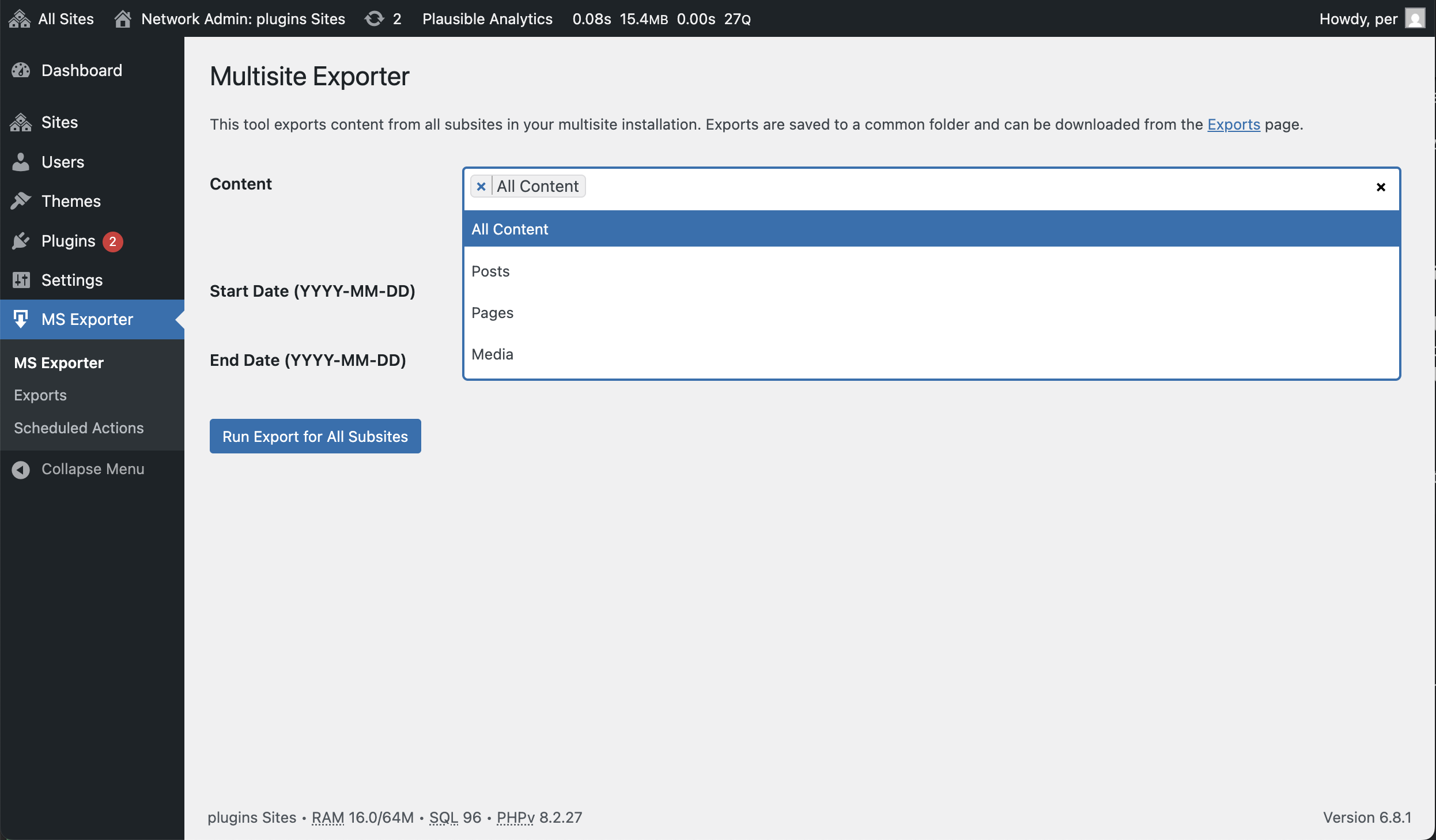
- Navigate to MS Exporter → Multisite Exporter
- Configure your export settings:
- Content: Choose to export all content, posts, pages, or media
- Post Type: Optionally specify a custom post type
- Date Range: Optionally filter by start and end date
- Click “Run Export for All Subsites”
- Exports will be processed in the background using Action Scheduler
Accessing Export Files (UI Method)
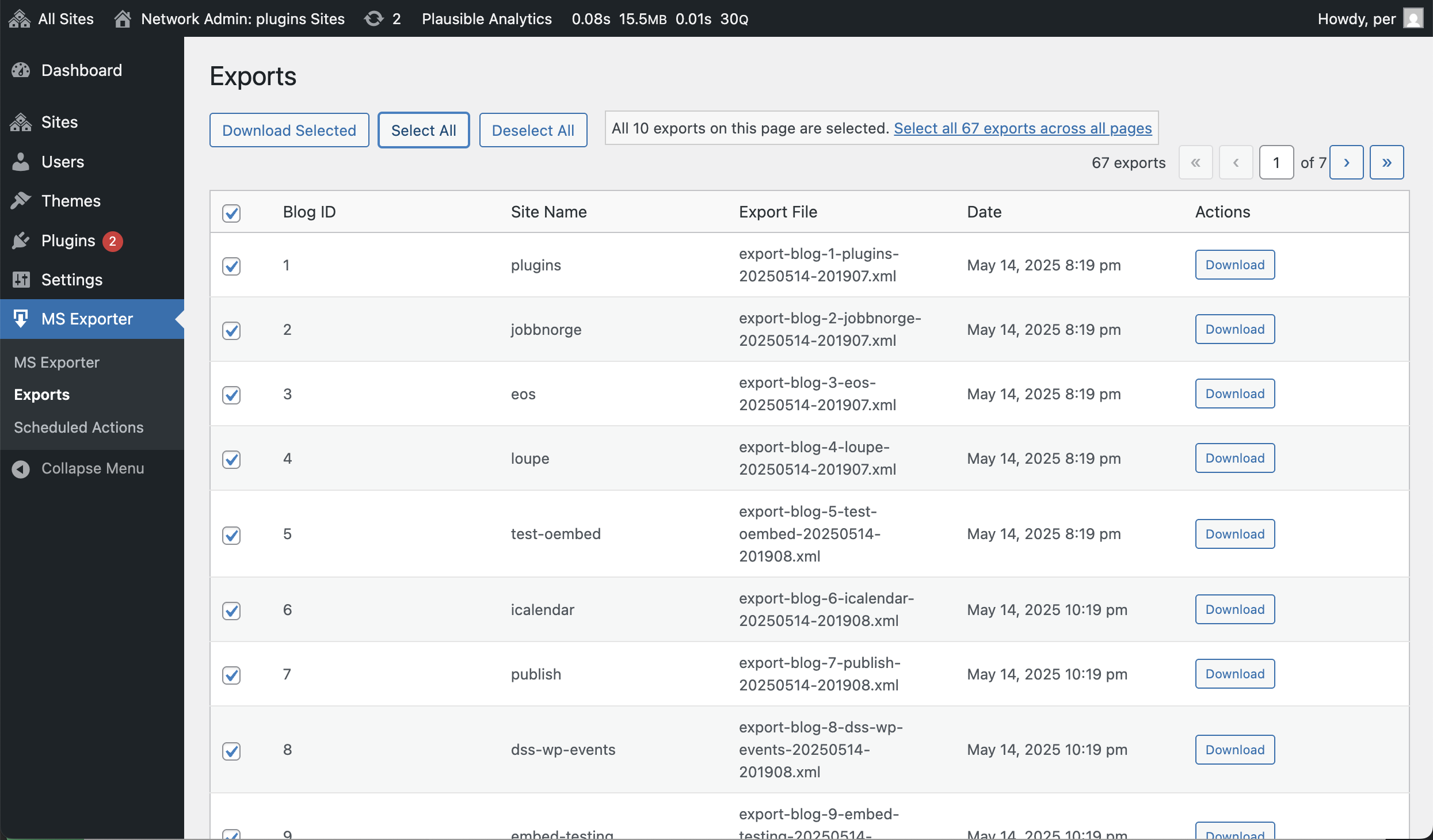
Section titled “Accessing Export Files (UI Method)”- Navigate to MS Exporter → Exports
- View a list of all completed exports from all subsites
- Download options:
- Click the “Download” button next to an individual export
- Select multiple exports using checkboxes and click “Download Selected” to get a zip file
- Use “Select All” and “Download Selected” to download all exports at once in a zip file.
WP CLI Method
Section titled “WP CLI Method”The plugin includes a WP CLI command to export content directly from the command line.
Basic Export (All Sites, All Content)
Section titled “Basic Export (All Sites, All Content)”wp multisite-exporter exportThis will export all content from all sites in your multisite network.
Exporting Specific Content Types
Section titled “Exporting Specific Content Types”wp multisite-exporter export --content=posts,pagesValid content types are: all, posts, pages, media
Exporting Specific Sites
Section titled “Exporting Specific Sites”wp multisite-exporter export --site_ids=1,2,3This will export only the sites with the specified IDs.
Filtering by Date Range
Section titled “Filtering by Date Range”wp multisite-exporter export --start_date=2023-01-01 --end_date=2023-12-31Full Example
Section titled “Full Example”wp multisite-exporter export --site_ids=1,2,3 --content=posts,pages --start_date=2023-01-01The command will display a progress bar during export. When completed:
- For a single site, the export file will be saved in your current directory
- For multiple sites, a zip file containing all exports will be created in your current directory
How Action Scheduler Works
Section titled “How Action Scheduler Works”The Multisite Exporter plugin uses Action Scheduler, a robust background processing library for WordPress, to handle export operations efficiently across multiple sites. Here’s how it works:
Overview
Section titled “Overview”-
Task Scheduling: When you click “Run Export for All Subsites,” the plugin creates an individual task for each subsite in your network.
-
Background Processing: These tasks are processed in the background using WordPress cron, without blocking user interactions or causing timeout issues.
-
Failure Handling: If an export fails, Action Scheduler will automatically retry it based on its built-in retry logic, ensuring robust operation even in challenging environments.
Technical Details
Section titled “Technical Details”-
Storage: Action Scheduler stores tasks in a custom table, ensuring they don’t get lost even in case of server interruptions.
-
Queue Processing: Tasks are executed in a controlled manner, with rate limiting to prevent server overload.
-
Admin Interface: The plugin provides a filtered view of Action Scheduler’s interface under MS Exporter → Scheduled Actions, where you can monitor the progress of exports.
-
Scaling: The architecture can handle thousands of tasks, making it perfect for large multisite networks with hundreds of subsites.
Action Scheduler Location
Section titled “Action Scheduler Location”The Action Scheduler library is included in this plugin via Composer and can be found at:
/vendor/woocommerce/action-scheduler/All Action Scheduler related files are loaded automatically when the plugin initializes.
Benefits for Multisite Exports
Section titled “Benefits for Multisite Exports”-
No Timeout Issues: Export processes run in the background, avoiding PHP timeout restrictions.
-
Server-Friendly: Tasks are processed in batches, preventing server resource exhaustion.
-
Monitoring: You can track the progress of exports and identify any issues that may occur.
-
Reliability: The persistent storage mechanism ensures that even if a server restarts, your export tasks will continue where they left off.
Export File Storage
Section titled “Export File Storage”All export files are stored in a centralized location within your WordPress uploads directory:
wp-content/uploads/multisite-exports/This makes it easy to find and manage exports from all your subsites in one place.
Customizing Export Directory
Section titled “Customizing Export Directory”You can change the default export directory by using the multisite_exporter_directory filter:
/** * Change the directory where Multisite Exporter stores exported files */add_filter( 'multisite_exporter_directory', 'my_custom_export_directory' );function my_custom_export_directory( $default_export_dir ) { // Define a custom location for your export files return WP_CONTENT_DIR . '/my-custom-exports';}Add this code to your theme’s functions.php file or a custom plugin.
Translation
Section titled “Translation”The plugin is fully translatable. A POT file is included in the languages directory to help with translations.
To create a translation:
- Copy the
languages/multisite-exporter.potfile - Rename it to
multisite-exporter-{locale}.po(e.g.,multisite-exporter-fr_FR.po) - Translate using a tool like Poedit
- Save both .po and .mo files to the languages directory
Debugging
Section titled “Debugging”Error Logging
Section titled “Error Logging”Multisite Exporter follows WordPress best practices for error logging. All error messages are conditionally logged based on the WP_DEBUG constant setting:
if ( defined( 'WP_DEBUG' ) && WP_DEBUG ) { error_log( 'Multisite Exporter: [error message]' );}This ensures that:
- In development environments with WP_DEBUG enabled, you’ll see detailed logs about the export process
- In production environments with WP_DEBUG disabled, no error messages will be written to the log files
WXR Validation
Section titled “WXR Validation”Multisite Exporter includes a WXR (WordPress eXtended RSS) validator that checks the integrity of export files:
- Automatic Validation: Each export file is automatically validated after creation
- XML Structure Check: Ensures the export file has valid XML structure
- WXR Schema Validation: Validates against WordPress WXR format requirements
- Error Detection: Identifies and logs specific issues in malformed export files
The validator helps troubleshoot problematic exports and ensures your export files will be compatible with WordPress import tools.
Common Log Messages
Section titled “Common Log Messages”When WP_DEBUG is enabled, you may see the following messages in your WordPress debug log:
- Filesystem initialization: Messages about WordPress filesystem initialization
- Export progress: Notifications when exports start and complete for each blog
- File operations: Information about file cleanup and management
- Error handling: Details about any issues encountered during the export process
- WXR validation: Results of export file validation checks
Enabling Debug Mode
Section titled “Enabling Debug Mode”To enable debug logging for troubleshooting, add the following to your wp-config.php file:
// Enable WP_DEBUG modedefine( 'WP_DEBUG', true );
// Enable Debug logging to the /wp-content/debug.log filedefine( 'WP_DEBUG_LOG', true );
// Disable display of errors and warningsdefine( 'WP_DEBUG_DISPLAY', false );@ini_set( 'display_errors', 0 );
This configuration will log all errors to the debug.log file without displaying them on screen.
Copyright and License
Section titled “Copyright and License”Multisite Exporter is copyright © 2025 Per Søderlind.
Multisite Exporter is open-source software; you can redistribute it and/or modify it under the terms of the GNU General Public License, version 2, as published by the Free Software Foundation.
Multisite Exporter is distributed in the hope that it will be useful, but WITHOUT ANY WARRANTY; without even the implied warranty of MERCHANTABILITY or FITNESS FOR A PARTICULAR PURPOSE. See LICENSE for more information.
📦 Source: soderlind/multisite-exporter · Edit on GitHub